
This workflow is inherited, and that will become pretty obvious when you see it, as I'm most a button click admin and this critter has a lot of advanced formulas in it. That said it's my job to update and maintain this guy so here are some thoughts on doing that.
Customer Journey Flow
For each user we have a series of landmarks across the length of their "year" long contract that represent touch points with the customer we want to make. That is the purpose of this flow, to schedule tasks when an Opportunity is "Paid" that track the customer journey.
This flow determines the types of touch points based on an Opportunity classification:
- Raven-small opportunity
- Falcon-medium sized opportunity
- Owl-large opportunity
- Eagle-high touch opportunity.
And extra layer of complication is added to this because they have setup the flow to have different firing criteria if the Opportunity is New and Paid verses already Open and transitioned into a Paid status.
The end result of all this is that when an Opportunity is marked "paid" the process flow fires and assigns, based on a team designation, a series of future dated tasks to the appropriate CSL for that team/vertical.
Oh and did I mention they are different processes for a our SaaS and our traditional product lines?
Modifying the flow
To this point most of the modifications have been updating users and moving around verticals. Pretty easy stuff.
But now I've been asked to bifurcate the flow:
- Journey 1: Current process - New customers
- Journey 2: Simplified process- Current customers.
Fortunately for me, we already have a field that qualifies whether a customer is new or current for the purpose of commission payments, called Biz Dev on Opp. This picklist field has many options but only one for current customer, which makes it somewhat easier to make this separation.
The current formula looks like:
NOT(ISNEW()) && (PRIORVALUE([Opportunity].StageName ) <> 'Paid') && (ISPICKVAL([Opportunity].Type, 'IMPLAN Online')) && (ISPICKVAL([Opportunity].StageName, 'Paid') && [Opportunity].Orientation_Count__c >= 1) && (ISPICKVAL([Opportunity].Classification__c , 'Owl') || ISPICKVAL([Opportunity].Classification__c , 'Falcon'))
And I'm adding:
&& (NOT(ISPICKVAL([Opportunity].Biz_Dev_on_Opp__c , "Current Customer") ))
Now I also need to add on the process for the when the picklist is current customer.
Another Option
If I didn't have this field, another way I could attempt to analyze this would be to look at whether or not the contact had at least one previous opportunity.
The downside...Salesforce doesn't natively support rollups for Lookup filters so I can't create a rollup field on the Contact to count opportunities.
The upside...there is a great, free, managed package that will allow us to do this. https://github.com/afawcett/declarative-lookup-rollup-summaries
While this describes my journey and process, I highly recommend the Automate Your Business Processes Module and the Build an Account Reassignment Wizard Module on Trailhead, as I based my work on their tutorial. Thanks Trailhead!
In my case I've modified this from the Trailhead version a bit, because we don't actually want to change who owns the Account, which keeps a record of the Account creator for us, and which I don't want to restrict in the same way as the VAO field. In our company our VP of Sales and Success wants Customer Success Leads to own accounts for the life, but we want anyone who needs to to be able to create an Account.
Because of the above, I needed a different field for "ownership" than the standard Account Owner field and so we created the User Lookup field called VAO that is called in several other workflows. Now that my first user has left the company, I need to be able to reassign her Accounts to the new hire who is coming in, so they can take over the work of the agent who left, and so that the workflows can properly assign future task creation to the new agent.
I'm also trying to think ahead, based on what I've learned so far. Our verticals change frequently as we test new markets and abandon and condense some and grow into or find others. We've also expanded our sales team and shifted who owns verticals. Thus I also know that situation will arise in the future where I want to assign a certain vertical from one user to another although both agents are still active in the company. To try to capture all of these combination we are reassigning the VAO owner based on a combination of the Industry Vertical and Customer Success Agent, since again, only Customer Success Agents can "own" Accounts in our company.
For this process I used a visual workflow, that I've placed in my Administrator App.
The first element I created was the user screen that will eventually be deployed through a tab in my app.
The screen element contains:
- the User who needs Accounts reassigned {!User_to_Unassign},
- the User who is receiving the Accounts {!Recipient_of_the_Vertical}, and
- the Vertical that they are receiving{!Vertical_Affected}
since in my company, we can parse on the basis of verticals. These variable can all be used later in my flow.
I used a couple of prompts as display text, a couple of text fields and a drop-down list later
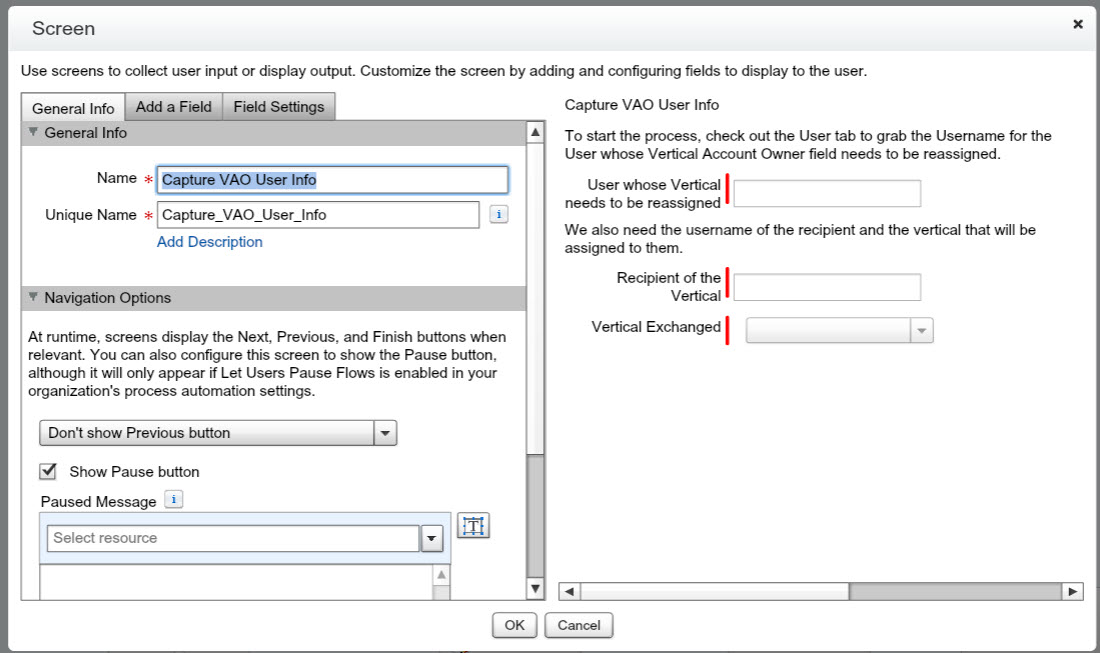
Using the picklist you already created is ideal because you don't have to do any updates to the flow itself. If the list changes, as our vertical list often does, this element will draw from the current list, whatever it may be.
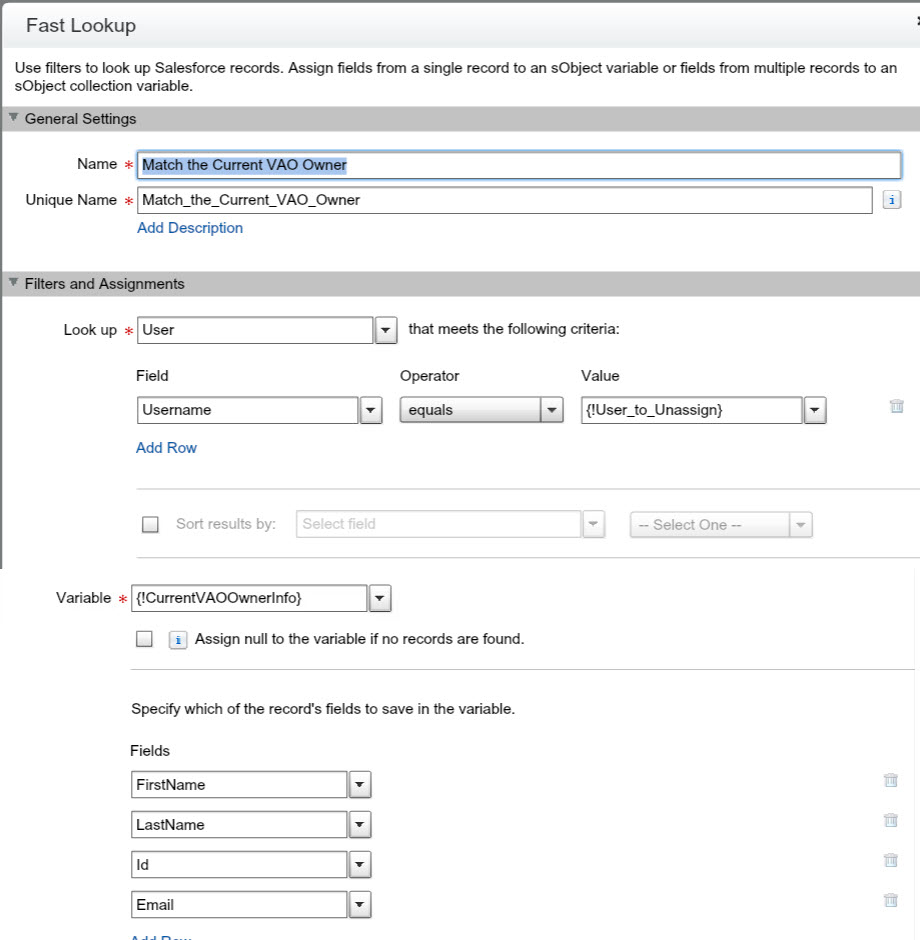
Fast Lookup Element -Match the Usernames to the entries in the screen.
Start with an sObject variable to store Id of the {!User_to_Unassign}. Id is the critical field for me here, but I'm storing a few other variables as well to call in the concluding email. Matching a User's username to the collected {!User_to_Unassign} from the screen, we collect the following variables.
- {!CurrentVAOOwnerInfo.FirstName}
- {!CurrentVAOOwnerInfo.LastName}
- {!CurrentVAOOwnerInfo.email}
- {!CurrentVAOOwnerInfo.id}
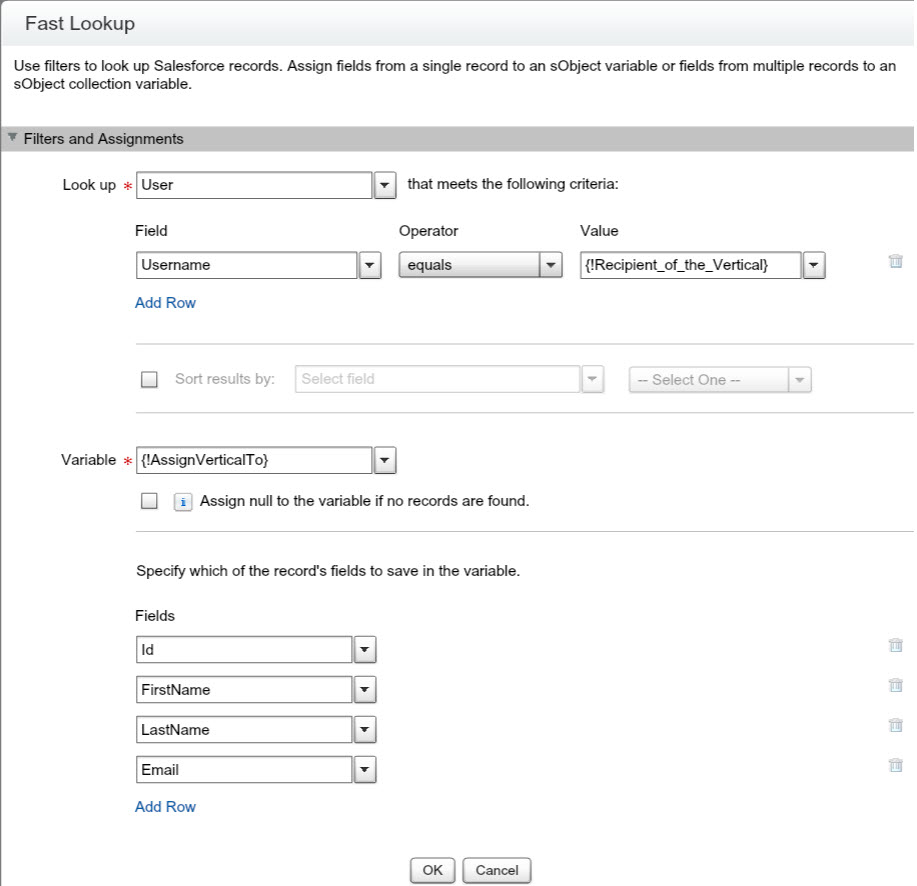
Now I need to do the same for the Assignee. A second sObject variable is created from a second Fast Lookup, where Id is also my main focus. For this flow the {!Recipient_of_the_Vertical} will be matched with a User Id based on the username captured in the {!Recipient_of_the_Vertical}.
- {!AssignVerticalTo.Id}
- {!AssignVerticalTo.FirstName}
- {!AssignVerticalTo.LastName}
- {!AssignVerticalTo.email}
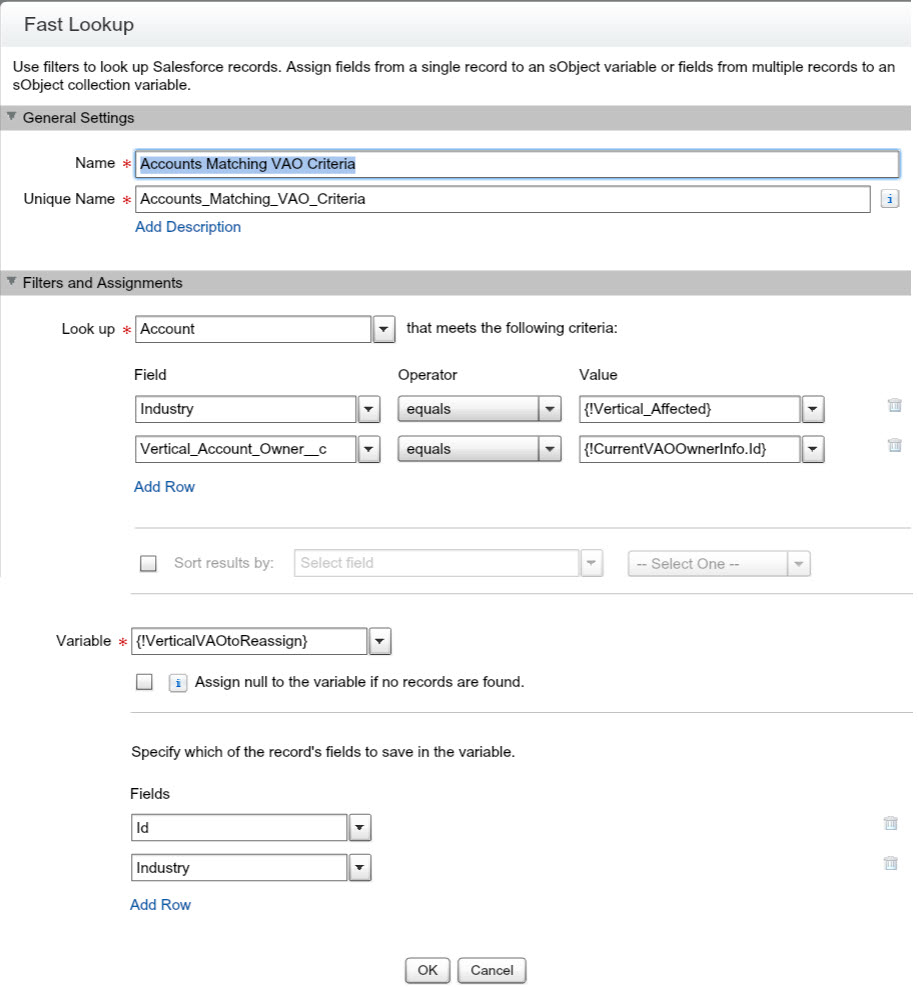
Now we need the sObject collection variable to store matching accounts, the collection variable is needed because we need to look at more than one account in this workflow. I'm using a fast lookup here as well, and looking for accounts that match on both:
- For current Vertical {!Vertical_Affected}
- For current VAO owner {!CurrentVAOOwnerInfo.id}
Based on Accounts that match these criterion, we are storing the Id.
- {!AccountstoReassign.Id}
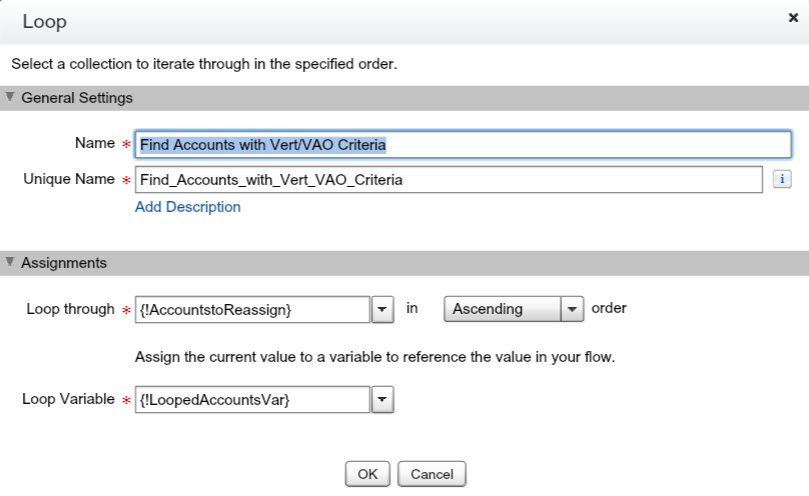
Add a loop to iterate through all the Accounts to see which ones match my criterion.
The Assignments
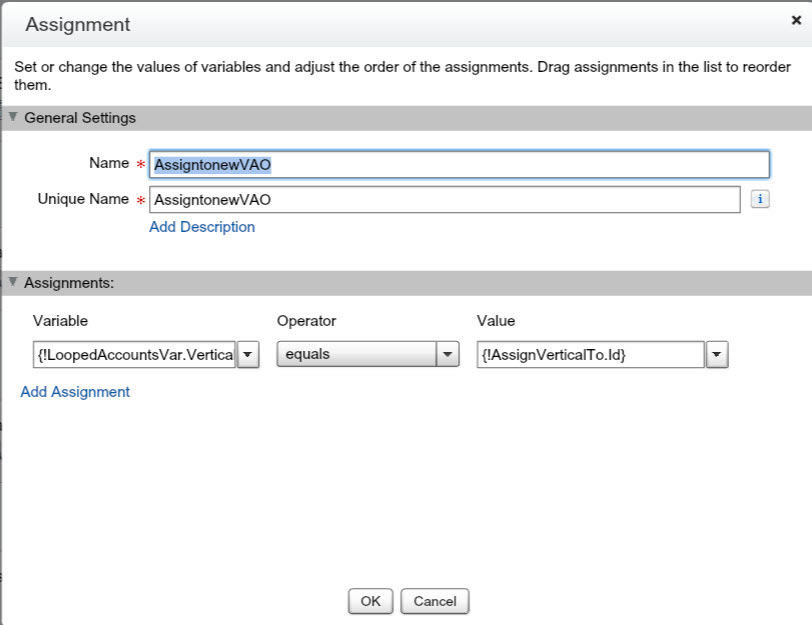
The loop will assign each one of the qualifying accounts to a loop variable and in turn this will be used to Assign the the Loop Variable VAO to {!AssignVerticalTo.Id}
Think of this element as being the "who the loop should assign to", don't worry about how it learns how to do that.
*remember to use Id fields and not usernames!
Collection:
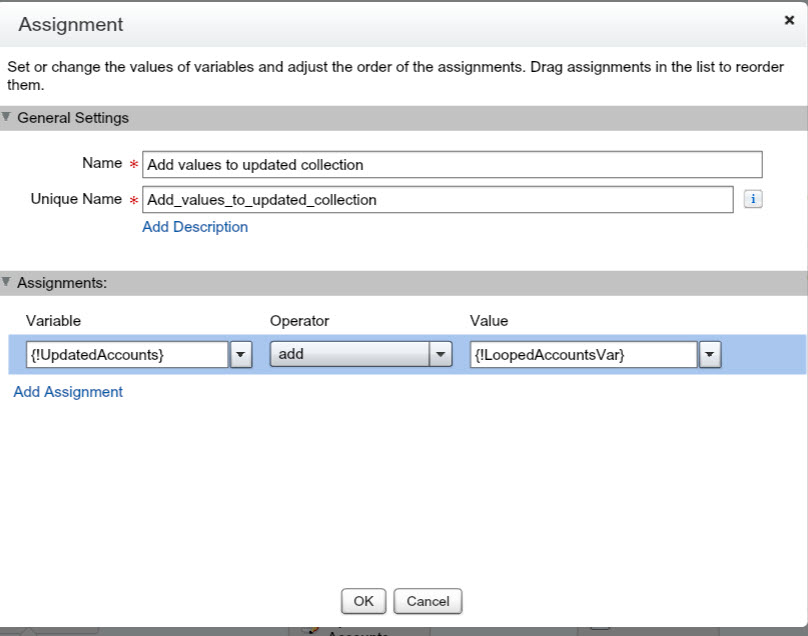
Because the loop can only iterate through one element at a time and new collection variable needs to be created so that the newly assigned user accounts can be stored for update. The new collection variable {!UpdatedAccounts} will collect all the iterations (add) of the {!LoopedAccountsVar}.
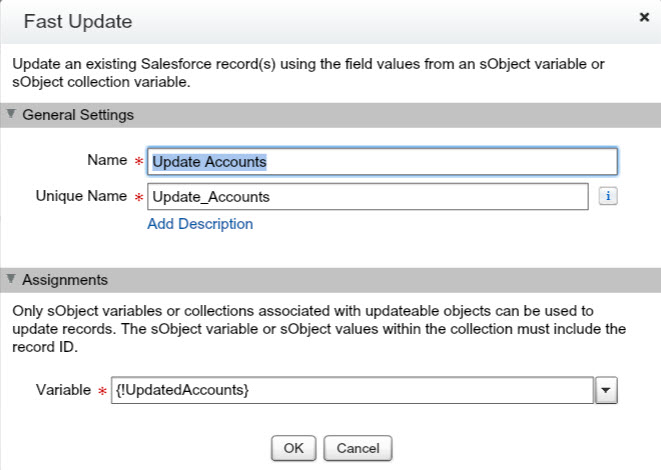
Once that's done, we are ready to actually update the records.
Fast Update
The fast update allows you to use all the accounts that were updated, along with their new VAO based on the collection variable defined in the Collection assignment {!UpdatedAccounts}
Especially if you are using a user flow, don't forget your concluding screen, and email.
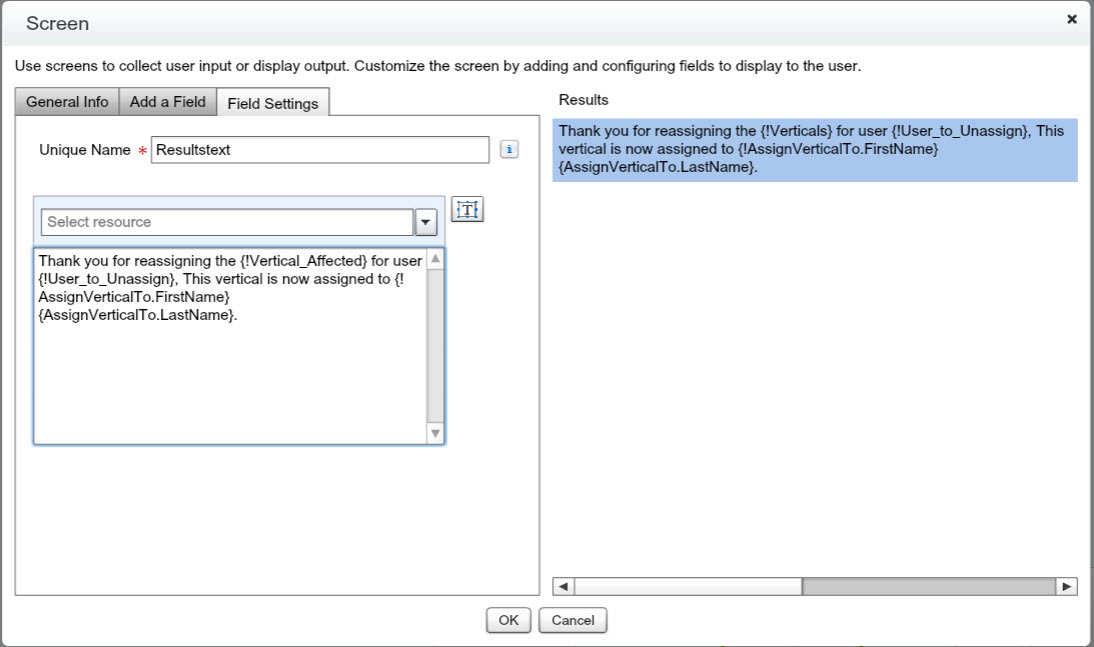
The email uses a text template that I created with the following text:
Hello {!AssignVerticalTo.FirstName} {!AssignVerticalTo.LastName},
This is to let you know that the {!Vertical_Affected} has been assigned to you. You are now the VAO for this vertical and will receive the assignments and tasks associated to these users moving forward.
Please let us know if you have any questions.
Using the variable for that template:{!NotifyUsersofVAOreassign}
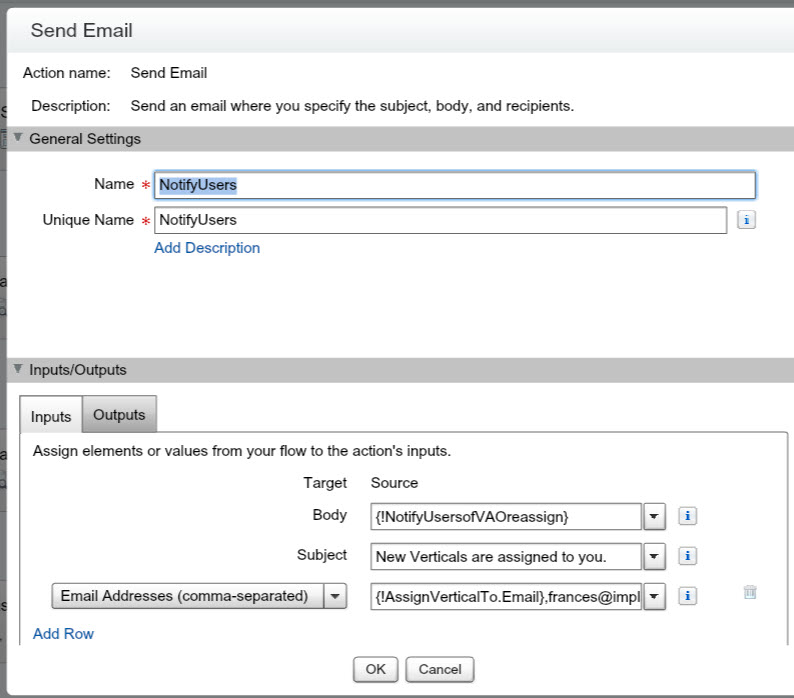
Implementing the flow via a Visual Force tab.
Finally we need a way to be able to deliver it. I have it embedded in an app that has common admin functions and custom apps.
Adding the Visual Force page is easy. You simply find the Visual Force pages under the Developer section (Classic) and create a new page.
The apex is:
<apex:page>
<flow:interview name="unique name from the flow page"/>
<apex:page/>
To create the Tab, type in Tabs.
Find the Visual Force tabs sections and follow the wizard!
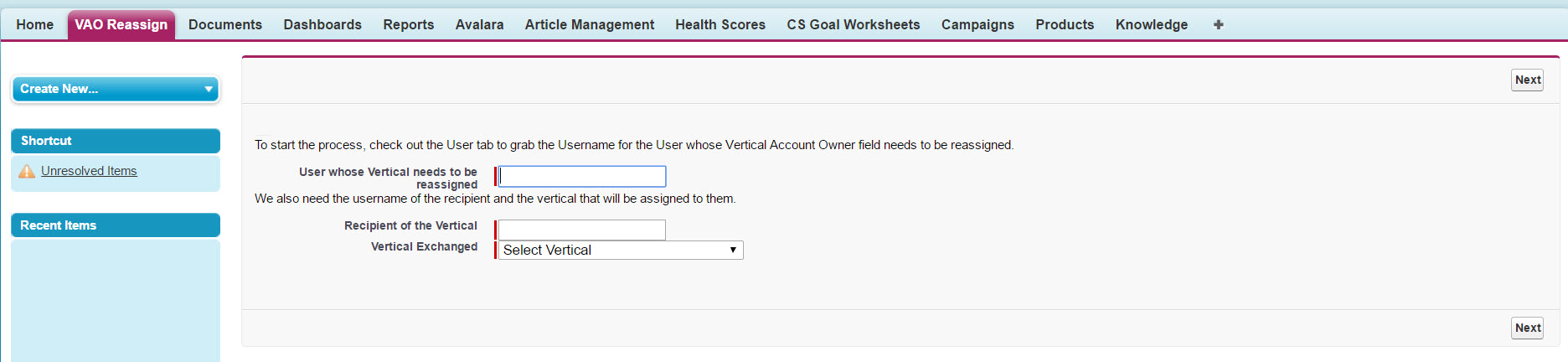
We are ready for being able change vertical owners when these change or add or remove users from the account ownership.
Want to take it up another level? Check out this article where we add reassigning Tasks and Cases associated to these Accounts to the new VAO.
A snag that may often come up as business needs change is that your realize that you really care about data you were never collecting before, and now to meet the needs of a new metric, you need to ensure that before you move forward to close deals, you have the data you need populated throughout all the related objects.
In our case, we had a workflow that fired off a variable that was missing on every Account. Every one, several thousand. Some may be active, others aren't, and there is no way to determine based on the information currently captured by the Account or Contact to auto-populate this field...it required user input and classification.
So how can I ensure that the Accounts are properly updated, that only active Accounts are forced to update, and still not create too much of a burden on my sales and customer success teams?
Turns out an excellent solution was a Visual Workflow to create Opportunities...and making it the only way to create Opportunities.
Why Opportunities? Well this ensures that we are only forcing users to update active accounts. Accounts won't be updated if they aren't buying, and the moment they do buy, they are forced to be updated.
- You are here:
-
Home

- Workflows